

Repetitio est mater studiorum.
Or to say it another way, repetition is the mother of learning.
And while repetition sometimes gets a bad rap (as in “drill and kill”), properly utilized, repetition can help cement foundational concepts and allow students to advance to more deeper and nuanced forms of learning.
The learning platform I Know It provides a wide range of activities and exercises for K-5 math and English language arts practice, as well as progress reports for educators and parents and gamified feedback for students.
What is I Know It?
I Know It is a math and English language arts practice site that provides extensive, individualized exercises for students in grades K-5.
The platform includes some of the most engaging features of gamification, such as congratulatory graphics and animations, sound effects, awards, and badges. I think it strikes an excellent balance between fully gamified interactives on one hand and dry data-driven instruction on the other.
I Know It goes beyond simple practice modules by aligning the majority of its exercises with Common Core Standards or selected state standards. Plus, its student-friendly features will encourage timely assignment completion as well as exploration of additional, unassigned problem sets.
How Does I Know It Work?
I Know It makes it easy for educators to sign up for its generous free trial. Simply provide your name, school name, phone number, and email and you’re ready to explore the site. Once signed in, teachers can set options for the following parameters:
- Standards (Common Core, Texas or Florida)
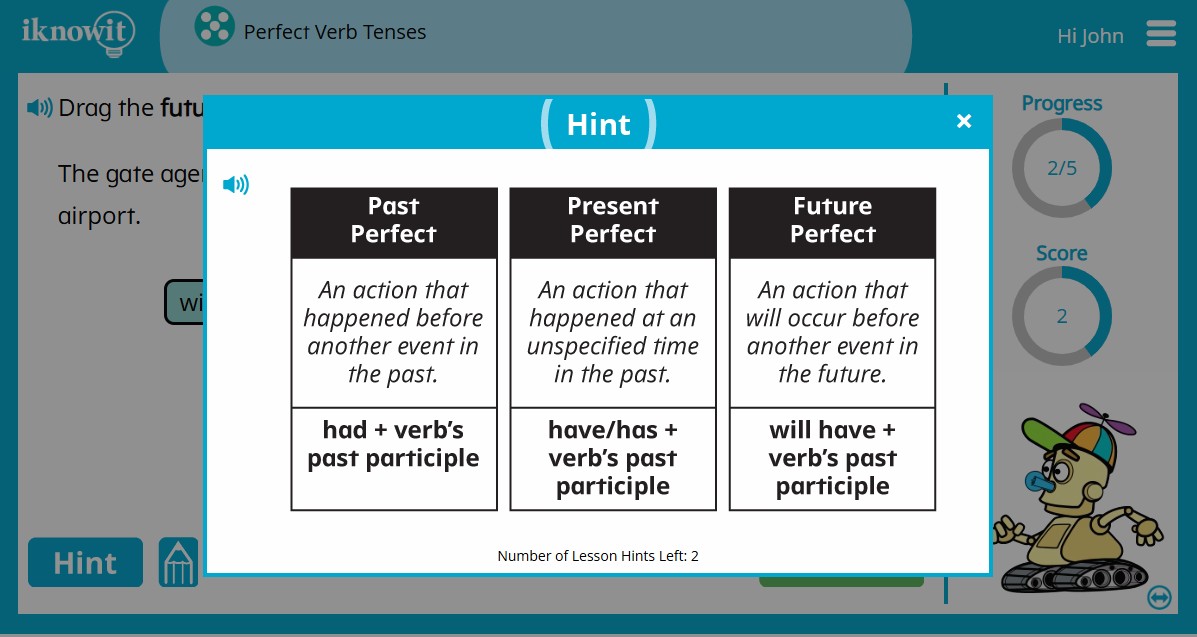
- Hints (none, three or unlimited)
- Animations (on/off)
- Students may explore on their own (yes/no)
- Questions may be read aloud (on/off)
- Progress report to parents via email (yes/no)
Given the level of control and optimization provided, I Know It has a remarkably clean interface with intuitive navigation. It’s also very easy to edit any of these parameters at any time later.
CREATING A CLASS
Create and name your class from the My Students tab. The easiest way to populate your online classes is to use the Rapid Roster feature, which accepts text input, or copy-and-pasted names from a text file, spreadsheet, or email. The system will then create the user names and passwords for you. These can be edited later if you wish. You can also print out a PDF with all student names and passwords.
GETTING TO KNOW THE EXERCISES
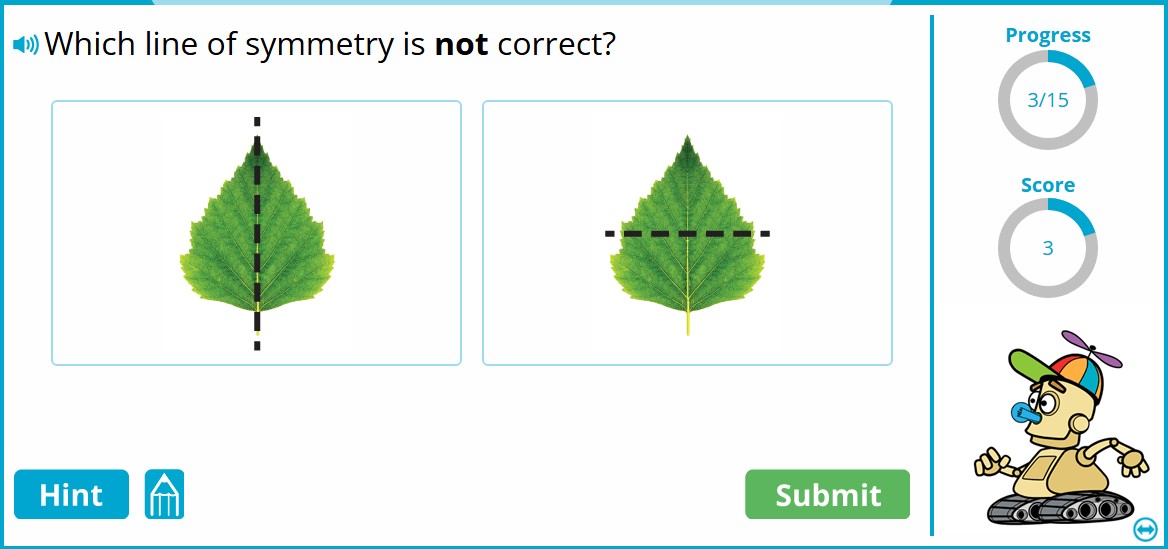
I Know It offers two categories of practice: math and English language arts. To start exploring practice sets, select a category and grade from the top menu or from the teacher dashboard. Now you’ll see the entire range of problems for that grade, with large bold print headings so you can easily find your preferred activities.
To get a quick view of a problem type, mouse over the description and an example will pop up. To try it yourself, click to open the problem. Your view will be identical to the student’s view, so you can see what happens following a correct answer or an incorrect answer.
Note the animation option toggle in the lower right corner. Students who prefer not to have graphic or animated feedback can adjust their own settings.
If you’d like to experience and test the platform exactly as a student would, sign in as a student in a separate browser. First add a student; e.g.; Test Student. Open a new browser (for example, use Edge if your teacher account is open in Chrome) and sign in as Test Student, logging in with user name, the class code and the password. A separate student email is not required.
ASSIGNING EXERCISES
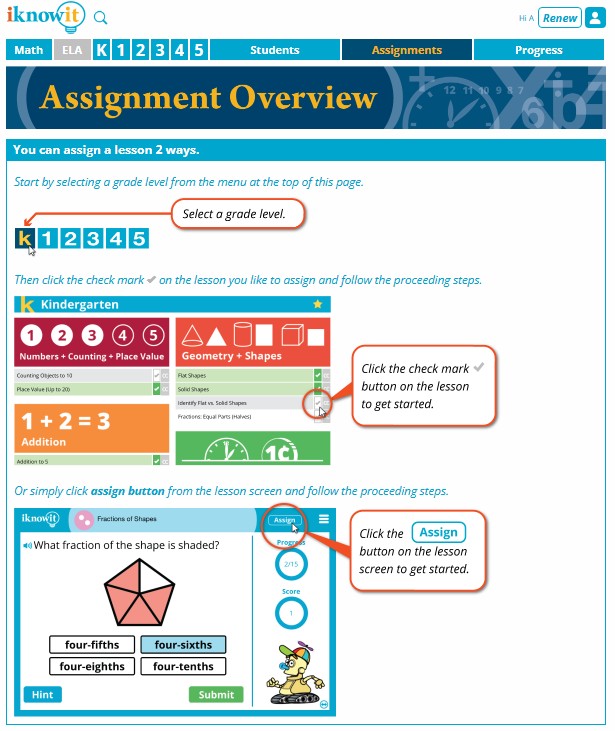
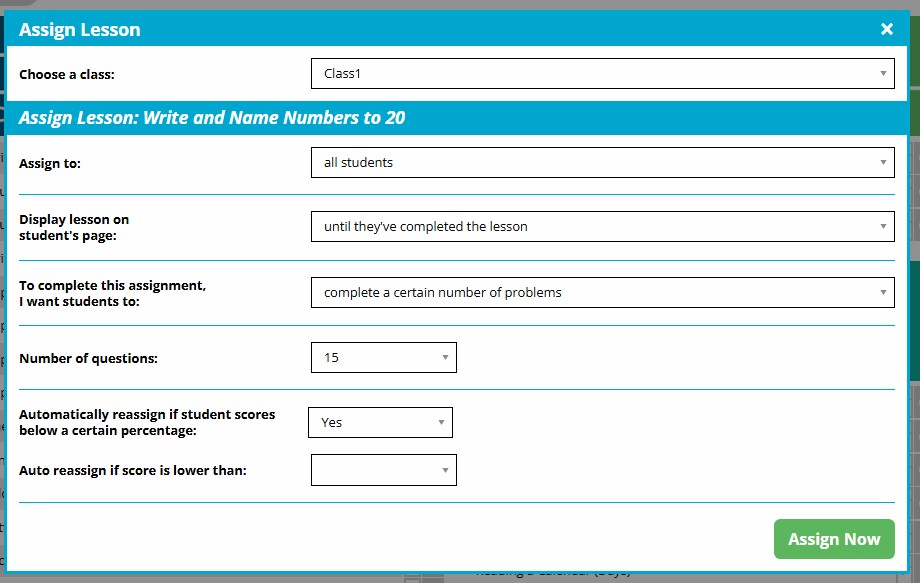
To assign activities from the teacher dashboard, select grade and subject (math or ELA), then select the desired exercise. The Assign Lesson window gives you multiple options for the assignment, including number of questions (1-80), which students to assign, display options, auto reassign, and several others.
What Are the Best I Know It Features?
LESSON DIFFERENTIATION
One of most useful features built into the I Know It platform is the ease with which teachers can differentiate lessons. This can be accomplished in two ways:
- Assigning a lesson of a lower or higher grade level to individual students.
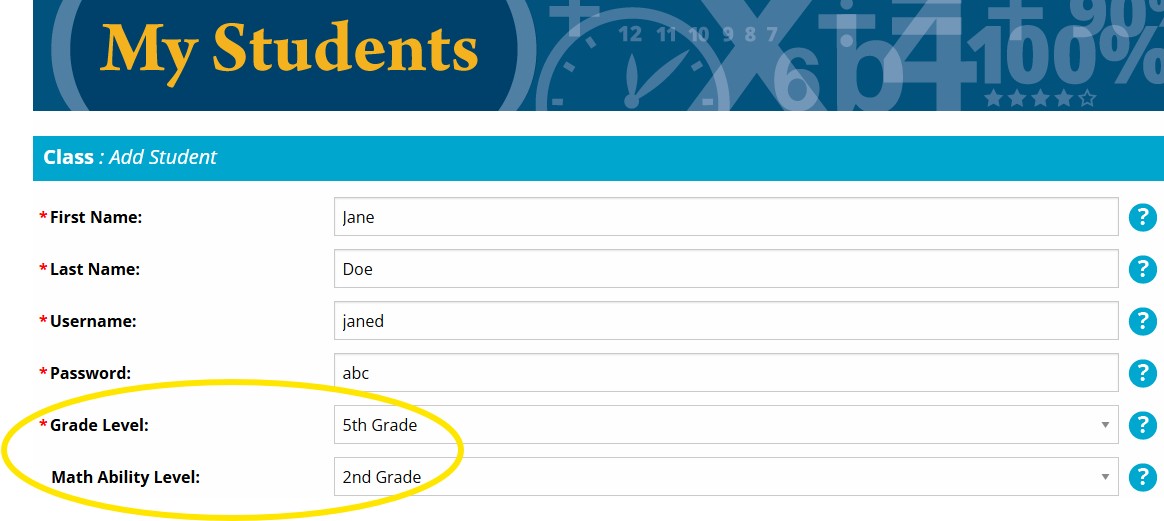
Instead of assigning fourth grade math sets to Jane Doe, you can assign second grade problem sets, since she’s currently working at that level. You can then quickly assign grade-level work to the rest of the students if desired. Importantly, there will not be a grade level displayed on assignments. - Setting the “ability level” to a lower or higher grade.
The “ability level” is an optional feature that, if set, will guide the level of exploration exercises offered to a student. These are the optional activities displayed underneath the student’s assigned work.
PROGRESS TRACKING AND REPORTING
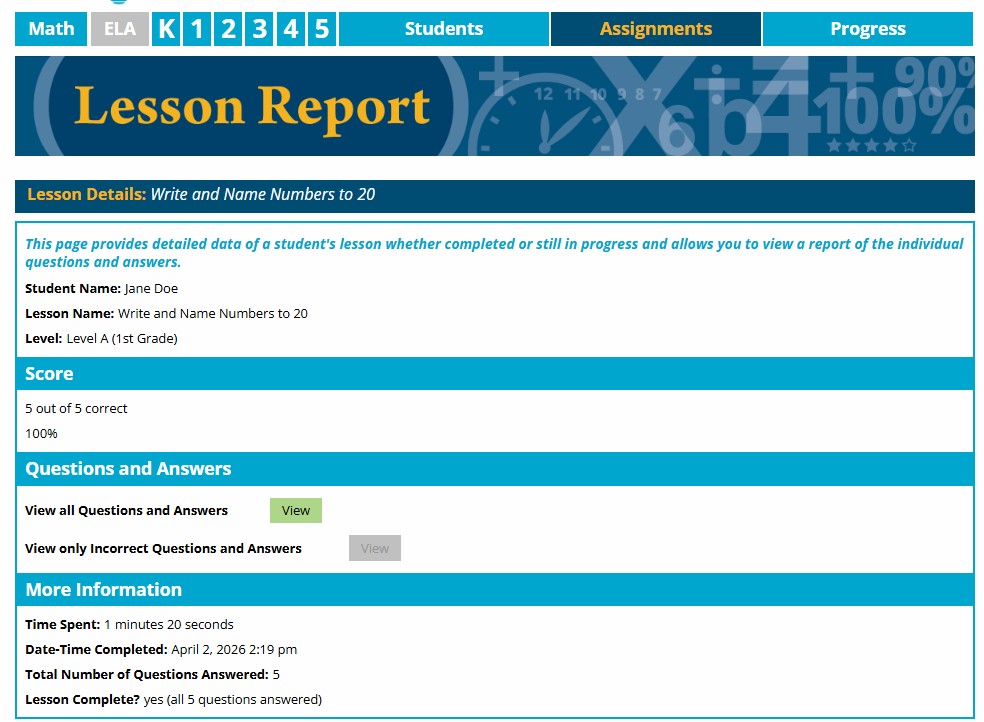
Student progress tracking allows teachers to see overviews of a class or student, or drill down into details if desired. “Recent Activity” lists students, lessons worked on, and scores, with a link to a detailed view for each student. Here teachers can view all of a student’s questions and answers as well as time spent on tasks.
Teachers may also export a printable PDF progress report for selected intervals, or view awards won by students for completing lessons. Weekly progress reports will be emailed to parents if enabled in Settings.
BUILT-IN ACCESSIBILITY TOOLS
Each activity window sports a sound icon in the top left corner, allowing questions to be read aloud. Incorrect answers yield explanations clarifying the correct answer and offering the chance to view the question and answer again.
Does The Robot Have A Name And Why Is It So Much Fun?
Maybe it’s just the fifth grader in me, but I love the animated robot character that responds to answers (if animations are permitted in settings). The variety of playful animations for correct answers—all with apt and amusing sound effects—include: blowing bubbles; barking dogs; flying birds; rain; rainbows; rocket ship taking off, circling the moon, parachuting back to Earth; juggling; a flower garden springing from the head; eating an apple that turns into a pie; and more.
My guess is that most kids will enjoy these animated rewards and hopefully, be more motivated to complete their work. Sadly, the riveting (and no doubt, riveted) robot is nameless.
How Much Does I Know It Cost?
I Know It offers three account types: Family, Single Teacher and School/District, with varying pricing and features. A 30-day free trial, with no credit card required, makes it straightforward to discover if the platform is right for your class.
The Family membership allows one parent and up to four children, using a single login, for $45 annually.
The Single Teacher account includes one teacher and 25 students (each of whom has an individual login) for $150 annually and the option to add additional student licenses at $7.50 each.
The District/School account provides additional benefits, such as a unlimited teacher accounts, a dedicated account manager, teacher training, phone tech support and others. The cost is per student and varies depending on the size of the school or district.